
Documentation
CodeSplash AI
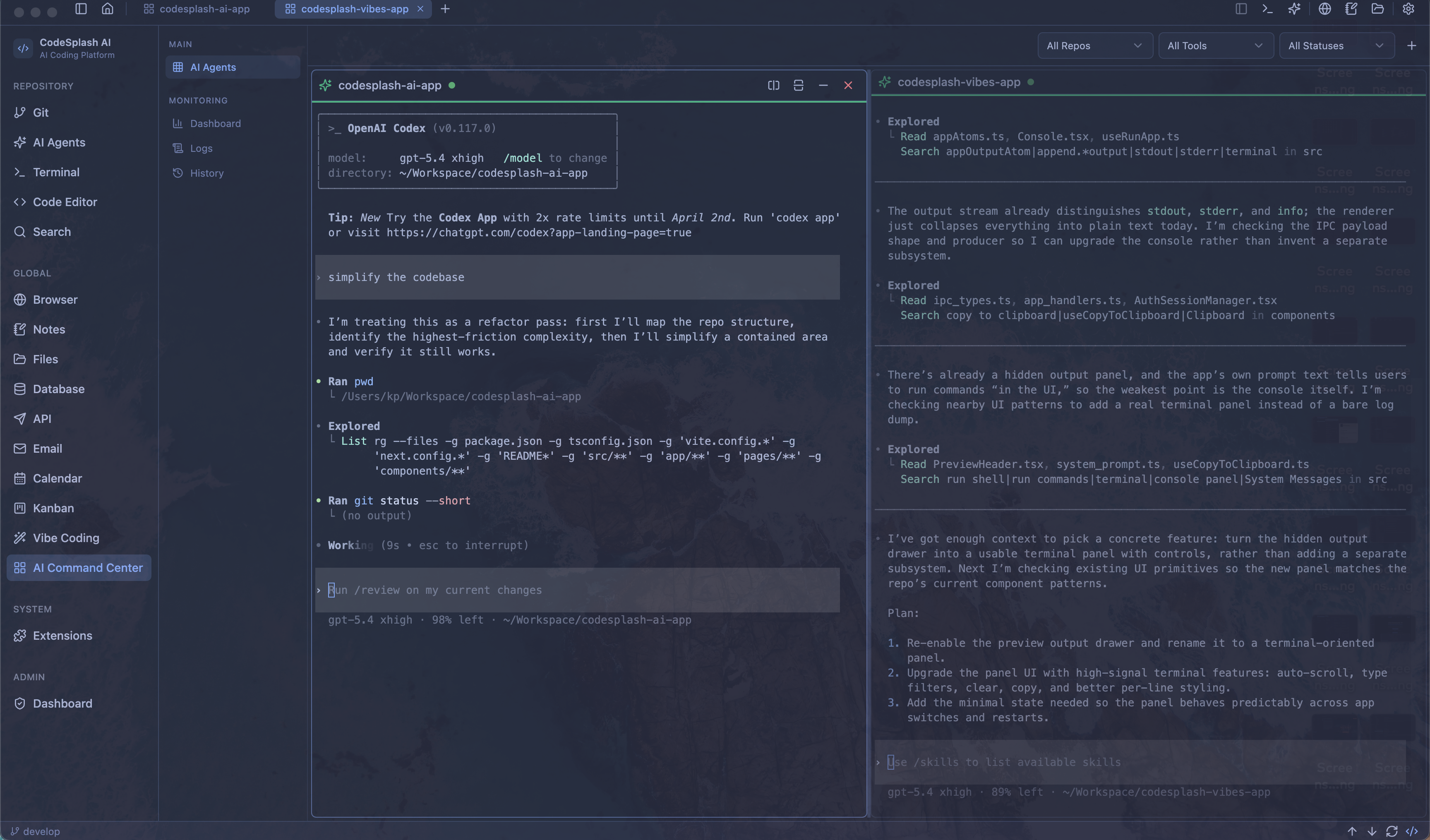
Use CodeSplash AI as a full engineering desktop—connect a workspace, supervise agent sessions, move between development tools, explain systems with diagrams, and finish product videos without fragmenting the workflow.
Getting started#
Connect the repository you already use, verify the essential tools, and configure the workspace before starting a long agent session.
Install the desktop build#
- Open the CodeSplash AI product page and choose the download for your operating system.
- Complete the platform installation flow and launch the app.
- Open an existing repository or create a workspace for a new project.
- Confirm that the Files, Code, Terminal, and Git applications can see the same workspace.
Expected result: the workspace opens with its repository state and files available throughout the integrated applications.
Choose the right application first#
Open the tool that matches the immediate job:
- Files to understand structure or move assets.
- Search to find symbols, text, or configuration across the repository.
- Code to inspect or edit source.
- Terminal to run scripts, tests, and development servers.
- Git to understand changes before committing.
- AI Agents to delegate a bounded implementation task.
- Diagrams to map architecture, workflows, and ideas visually.
- Video to edit raw footage into polished videos.
Starting from the right surface keeps the request precise and makes agent output easier to verify.
Configure shortcuts and defaults#
Review settings before settling into daily work. Set the shortcuts you use most, verify your preferred terminal and agent tools, and keep destructive actions behind confirmations.
Recommended first shortcuts: quick switcher, global search, terminal, Git, agent session, and Command Center.
Daily engineering loop#
Use a repeatable loop that keeps repository context visible from investigation through verification.
Investigate with Files and Search#
- Scan the top-level structure in Files.
- Search for the user-facing text, symbol, route, or configuration related to the task.
- Open the smallest relevant set of files in Code.
- Capture assumptions or a short plan in Notes when the change crosses several areas.
This sequence reduces broad edits and gives an agent concrete context if you delegate the implementation.
Run and verify beside the code#
Keep Terminal next to the files being changed. Run the most focused check first, then expand verification as confidence grows:
focused test → related test suite → type/build check → manual workflowKeep planning attached to the workspace#
Use Notes for decisions and Kanban for work state. Link a task to the branch or worktree that implements it, and record anything the next person—or the next agent session—must know.
Git and parallel worktrees#
Review changes as first-class work. Worktrees are especially useful when multiple agents or experiments need isolated branches at the same time.
Review working-copy state#
Before committing:
- Inspect every changed and untracked file.
- Read the diff for accidental formatting, generated output, and secrets.
- Run the checks appropriate to the affected area.
- Write a commit message that describes the user-facing outcome.
Create parallel worktrees#
Create a separate worktree when a task needs an independent branch, a long-running experiment, or a dedicated agent session. Give it a clear name tied to the task and keep each worktree focused on one outcome.
Expected result: each task has its own working directory and branch, so changes do not collide before review.
Reconcile and clean up completed work#
Merge or hand off reviewed changes, verify the destination branch, and only then remove a finished worktree. Preserve anything uncommitted until you have explicitly decided what should happen to it.
Agent orchestration#
Treat agent sessions as supervised execution environments. Clear scope, repository context, and verification criteria matter more than a long prompt.
Start a focused agent session#
A strong task includes:
- The outcome and who benefits from it.
- The files or product area in scope.
- Constraints that must remain true.
- Tests or interactions that prove completion.
- Actions that require confirmation.
Avoid combining unrelated feature, refactor, and cleanup work in one session.
Coordinate work in Command Center#
Use Command Center to compare active sessions, spot stalled work, and keep parallel tasks from editing the same area. Assign independent work to separate branches or worktrees and reserve integration decisions for a reviewed session.
Review an agent handoff#
Read the summary, inspect the diff, run the stated checks, and test the user journey. If anything is unclear, ask for evidence tied to files, output, or observable behavior.
Supporting tools#
Bring research, API inspection, data work, and project communication into the same desktop when doing so keeps important context attached to the build.
Research in Browser#
Use Browser for product references, official documentation, and local preview. Keep source URLs with any decision that depends on changing external information.
Inspect APIs and databases#
Use API to reproduce requests and Database to verify the data written by the application. Work with non-production environments by default and avoid placing credentials in notes, prompts, or source files.
Show agents what you see with Screenshot#
Screenshots are the fastest way to show an agent what it got wrong. Capture inside CodeSplash and attach the image to the agent session directly, instead of taking a system screenshot, dragging it back in from the desktop, and cleaning up the file afterward.
Dictate with Voice#
Voice converts speech to text using local models, so audio never leaves your machine and transcripts stay in CodeSplash. Enable global mode to dictate into any application on your computer.
Explain systems with Diagrams#
Use an Excalidraw canvas for freeform visual thinking or write Mermaid source with a live preview for structured architecture, sequence, flow, and state diagrams. Start blank, use a Mermaid template, import an existing diagram, or ask an agent to generate one.
Keep diagrams organized in the searchable library with favorites and tags. When a visual is ready to share, open presentation mode, copy it as an image, or export it as PNG or SVG.
Finish recordings with Video#
Bring recordings and imported clips into the Video library, then create a project and arrange clips on the timeline. Trim and splice the main video track, add voiceover and music layers, preview full screen, and relink a source if it moves.
Export the finished timeline to MP4 at the source size or a selected resolution and choose the source frame rate, 24, 30, or 60 fps.
Use Notes, Kanban, Calendar, and Email intentionally#
These applications are most useful when they reduce lost handoffs: document a decision, move a task, confirm a deadline, or keep a project conversation close to the work.
Troubleshooting#
Start with the smallest surface that is failing, then confirm whether the problem follows the workspace, the repository, or the entire app.
A workspace does not open correctly#
- Confirm the directory still exists and is readable.
- Try opening the repository from Files.
- Check whether the problem affects one workspace or every workspace.
- Restart the app after preserving any unsaved work.
A terminal command or development server fails#
Run the command directly in Terminal, read the first actionable error, and verify the expected runtime and dependencies are installed. If the server uses a port, confirm another process is not already using it.
An agent cannot complete a task#
Reduce the scope, provide the exact error or file, and define one verification step. Move independent work to another session rather than extending an unclear conversation indefinitely.
Frequently asked questions#
Should every task use an agent?#
No. Direct editing, search, Git review, and terminal work are often faster for small or well-understood changes. Use agents when delegation creates leverage without weakening review.
When should I use a worktree?#
Use one when two tasks must progress independently, when an experiment should not disturb the current branch, or when an agent needs an isolated working copy.
Where should I report a reproducible issue?#
Use the support or issue link on the product page. Include the platform, app version, reproduction steps, expected result, actual result, and any safe-to-share logs.
Integrated applications
CodeSplash AI keeps focused applications inside one engineering environment. Use this index to choose the surface that matches the work.
AI Agents
Launch, monitor, and compare unlimited parallel sessions across 24 integrated agent CLIs.
AI Chat
Chat with AI models beside your code without leaving the workspace.
AI Vibes
Prompt new builds without losing access to the engineering stack.
API
Test server endpoints with requests, environments, and collections.
Bookmarks
Keep favorite articles, websites, docs, and references close from web or mobile.
Browser
Preview your changes, search the web, and keep research beside the code.
Calendar
Keep schedules and commitments visible while you build.
Code
Inspect and edit the files your agents are changing.
Database
Query data and verify what your server is writing.
Diagrams
Create Excalidraw and Mermaid diagrams, generate with AI, present, and export to PNG or SVG.
Handle project communication without leaving the workflow.
Files
Access and manage the filesystem with a developer-focused alternative to Finder.
Git
Review exactly what agents changed with branches, history, diffs, merges, and worktrees.
Kanban
Plan and track engineering work on an integrated kanban board.
Notes
Capture ideas and render styled Markdown notes beside your projects.
Screenshot
Capture what an agent got wrong and drop it straight into the session, with no desktop round trip.
System
Monitor performance and access config files, dotfiles, and package management.
Terminal
Run dev servers, shells, commands, and automation next to the code.
Video
Trim and splice clips on a timeline, layer voiceover and music, and export MP4.
Voice
Speech to text with local models, in CodeSplash or globally in any app on your machine.