
Documentation
CodeSplash Themes
Install the Obsidian plugin, choose a coherent theme foundation, tune transparency and contrast, and refine typography and density without maintaining a custom CSS theme.
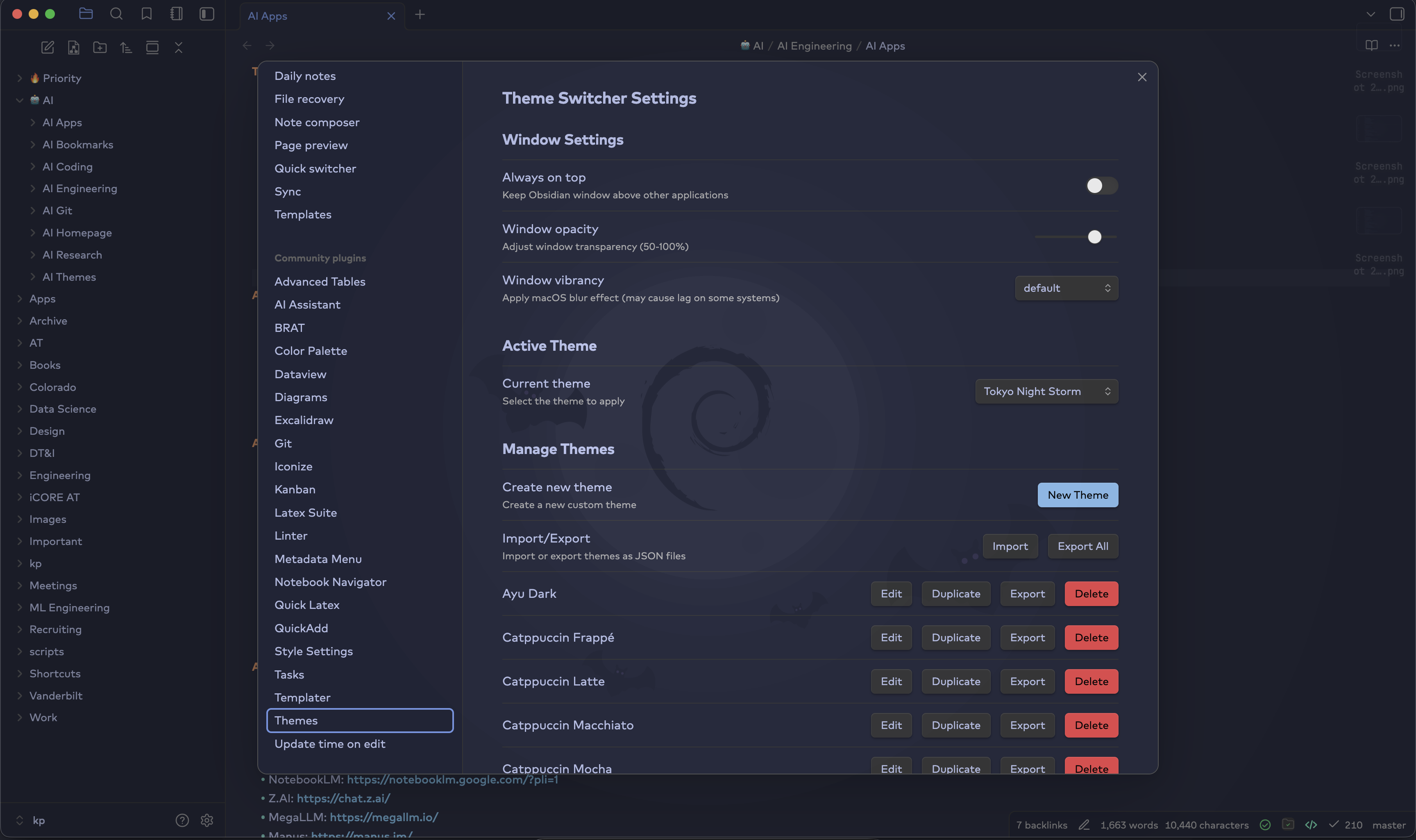
Install and enable#
Add the plugin through the supported Obsidian installation flow and establish a clean baseline before customizing.
Install the plugin#
Open Obsidian settings, locate CodeSplash Themes through its supported distribution channel, install it, and enable it for the current vault.
Open theme settings#
Review the available theme family, transparency, color, typography, and density controls. Change one category at a time during initial setup.
Establish a baseline#
Capture a screenshot or remember the default state before making broad changes. A baseline makes it easier to identify the control responsible for an unwanted result.
Choose a theme foundation#
Select the broad visual mood before tuning individual surfaces.
Browse theme families#
Preview several families using a representative note, the file explorer, search, settings, and any community plugins you use frequently.
Match the theme to the work#
Choose restrained contrast for long reading and writing sessions. Use stronger separation when your workflow depends on many simultaneous panes.
Check consistency across views#
Inspect sidebars, editor modes, modal windows, tabs, and settings. The theme should remain legible and coherent outside the showcase screen.
Tune transparency and contrast#
Transparency should add atmosphere without making text compete with the desktop or background image.
Start subtly#
Begin with a light transparency effect and increase it gradually. Test both focused and inactive windows if your operating system styles them differently.
Protect text contrast#
Use a quieter background, stronger panel opacity, or adjusted text colors when the workspace becomes difficult to read.
Test real notes#
Review headings, links, code blocks, callouts, tables, and long paragraphs. A theme is successful when it remains comfortable through actual work.
Refine typography and density#
Make small changes after the foundation is stable.
Adjust typography#
Choose readable body text first, then tune heading scale and interface labels. Verify that code and metadata remain distinct.
Tune layout density#
Use compact spacing for navigation-heavy workflows and more generous spacing for reading. Check touch targets and narrow panes before settling on the smallest option.
Save a stable configuration#
Record the settings you want to reproduce and avoid changing several categories immediately before important work.
Troubleshooting#
A setting has no visible effect#
Confirm the plugin is enabled, check whether another theme or snippet overrides the same property, and test in a default Obsidian view.
Text contrast is too low#
Increase panel opacity or text contrast and temporarily remove the background image. Do not rely on transparency when it harms reading comfort.
A community plugin looks incorrect#
Disable other style snippets, reproduce the issue with the smallest combination, and report the plugin name, Obsidian version, platform, and theme settings.
Frequently asked questions#
Do I need to edit CSS?#
No. The primary experience is designed around settings. Advanced Obsidian snippets may still override parts of the interface.
Can one setup work across platforms?#
Most settings can, but font availability, window effects, and operating-system rendering may differ.
How should I report a visual bug?#
Include a screenshot, platform, Obsidian version, active community plugins or snippets, and the smallest set of theme settings that reproduces it.