
Documentation
CodeSplash Games
Install one desktop app, browse the built-in game library, organize favorites and recents, import personal games, and keep the launcher current across supported desktop platforms.
Install and launch#
Choose the correct desktop package, complete the platform installation, and open the library.
Choose the installer#
Use the product download section to select macOS, Windows, or Linux. When architecture choices are available, select the one that matches your computer.
Complete the first launch#
Open the installed app and follow any operating-system security prompt. The built-in games should appear without separate game downloads.
Confirm the library is ready#
Open a game, return to the launcher, and verify that the session appears in Recents.
Browse and organize the library#
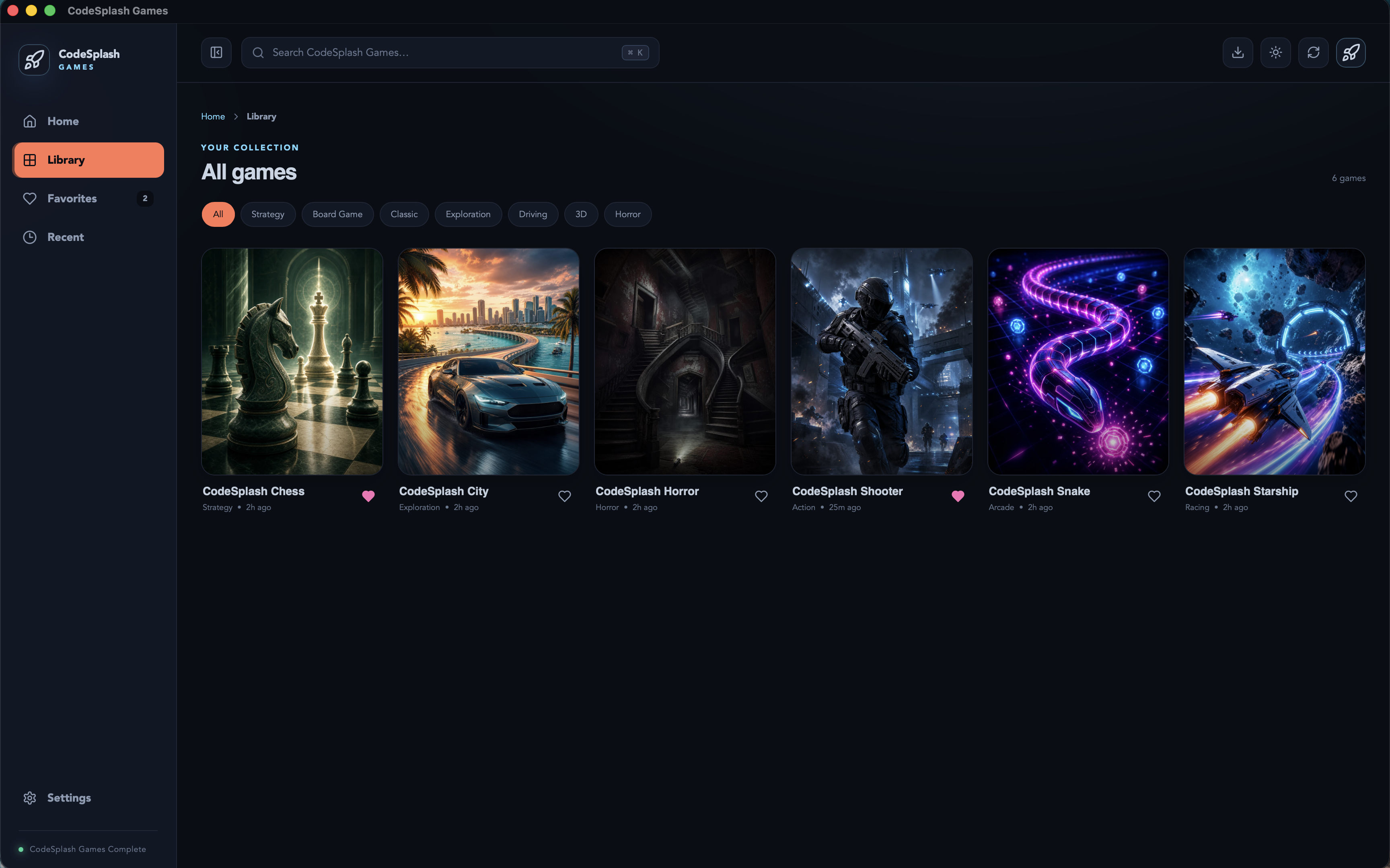
Use Library for the complete catalog, Favorites for intentional shortcuts, and Recents for quick continuation.
Browse built-in games#
Scan the visual library by title and game style. Open a game card to see its launch action and available details.
Save favorites#
Mark games you return to frequently. Favorites should remain available across normal app restarts.
Use recents#
Launch history gives you a quick route back to the games you played most recently without changing the curated library.
Import personal games#
Add compatible personal games to keep your own collection beside the built-in catalog.
Select a game to import#
Choose the import action and select the local game or supported package. Keep the original game files in a stable location so the launcher can continue to find them.
Review imported metadata#
Set a recognizable title and artwork when supported. Confirm the launch target before adding the game to Favorites.
Remove an imported entry#
Removing an imported library entry should not be treated as permission to delete the original game files. Confirm the scope of any deletion prompt.
Updates and support#
Keep the launcher current and provide reproducible details when reporting a problem.
Install an available update#
Use the in-app update notice or the latest public release. Preserve the previous working release until the new build opens successfully.
Download the latest release#
Website installer links follow the current release so new users receive the newest published build for their platform.
Report an issue#
Include the platform, architecture, app version, game, reproduction steps, and the difference between expected and actual behavior.
Troubleshooting#
A game does not launch#
Try another built-in game, restart the launcher, and verify that the problem is game-specific. For imported games, confirm the original files have not moved.
Progress or preferences are missing#
Confirm you are using the same operating-system account and that app data has not been cleared. Include the affected game and last known working version in a support report.
An update fails#
Keep the installed version, retry from a stable connection, or download the latest installer from the product page.
Frequently asked questions#
Are built-in games installed separately?#
No. The published desktop package includes the curated library.
Can I organize imported games with built-in games?#
Yes. Imported entries can participate in the launcher’s organization features when supported.
Where do I request a game or feature?#
Use the public support or issue link on the product page and explain the experience you want to improve.